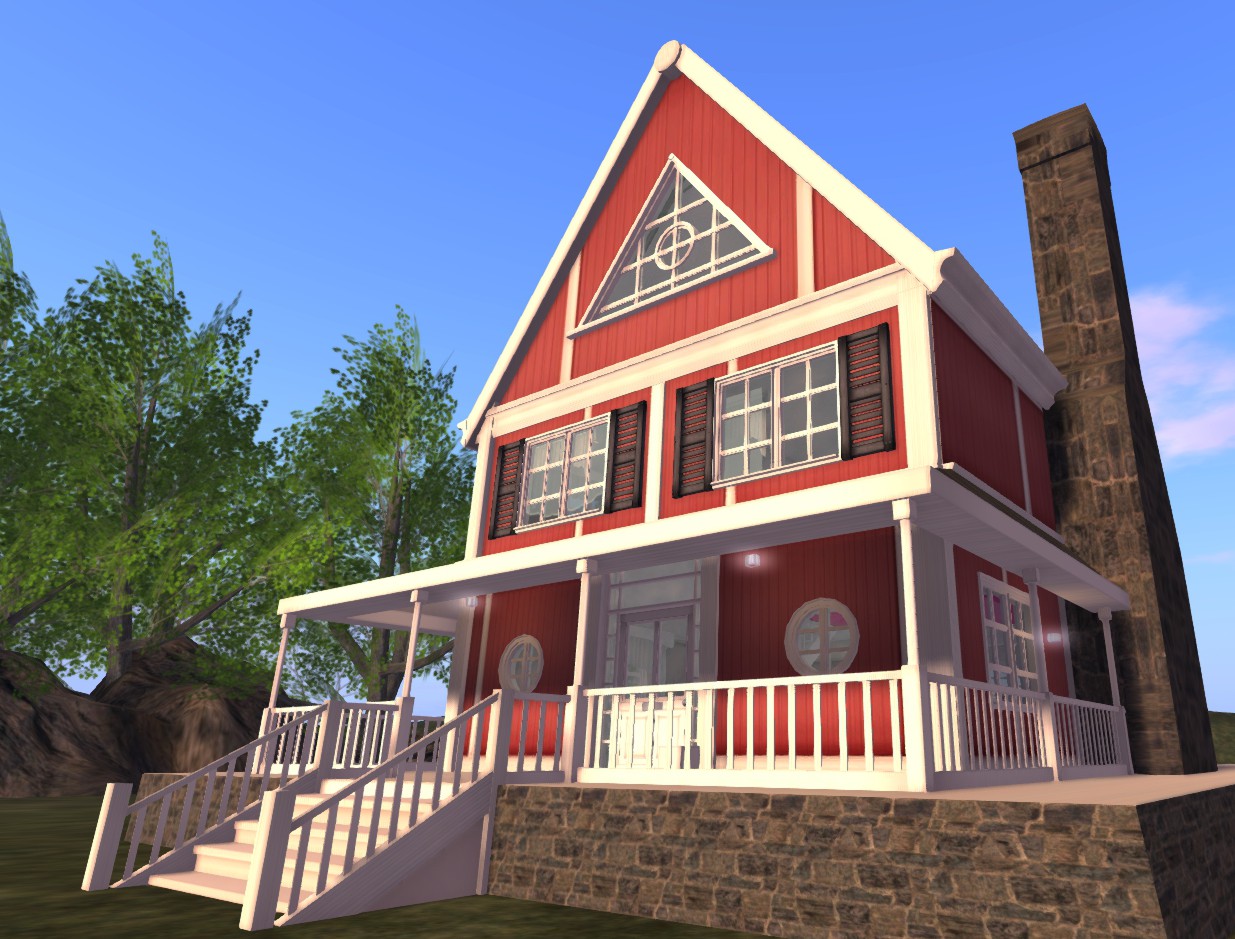
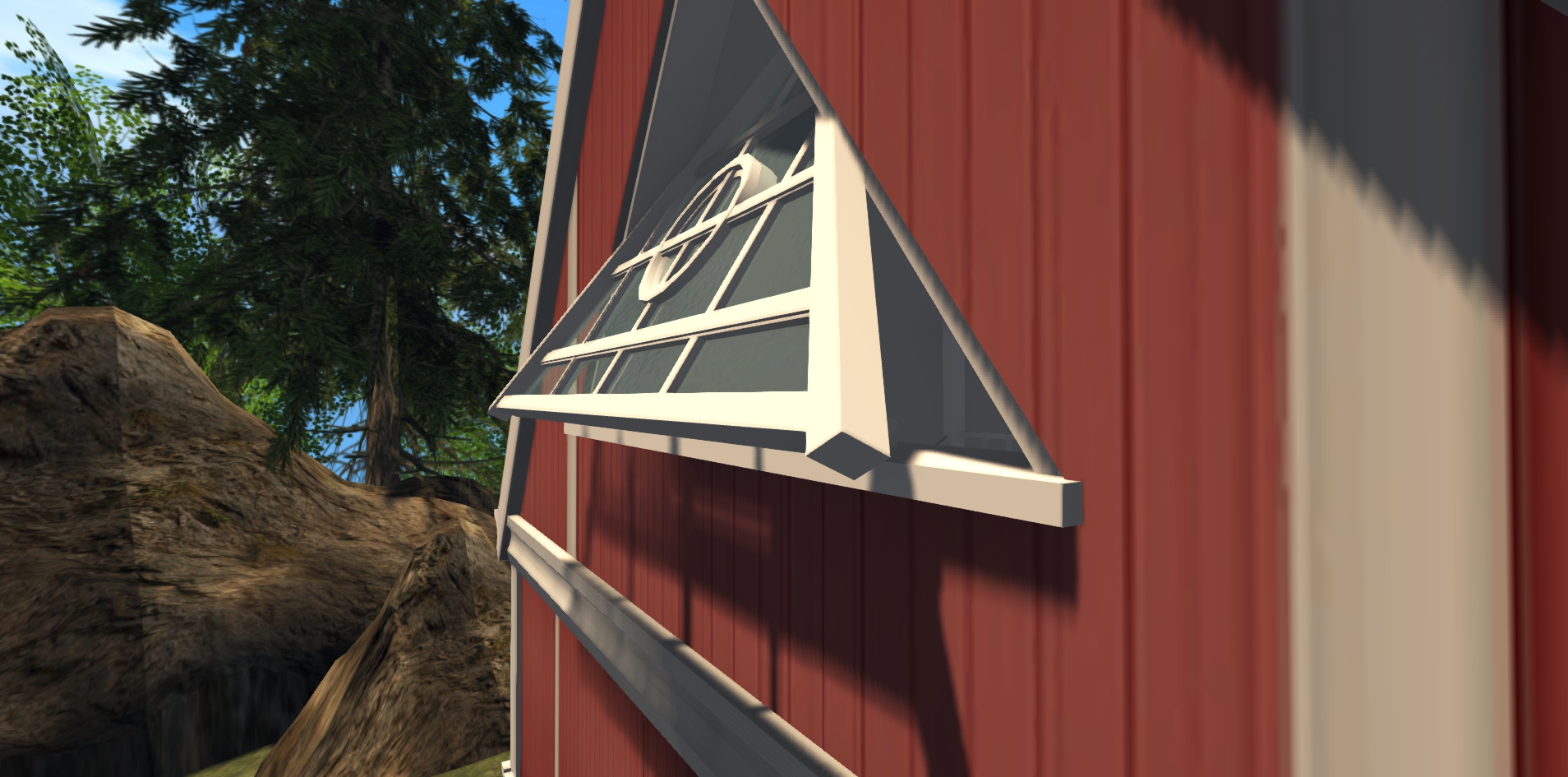

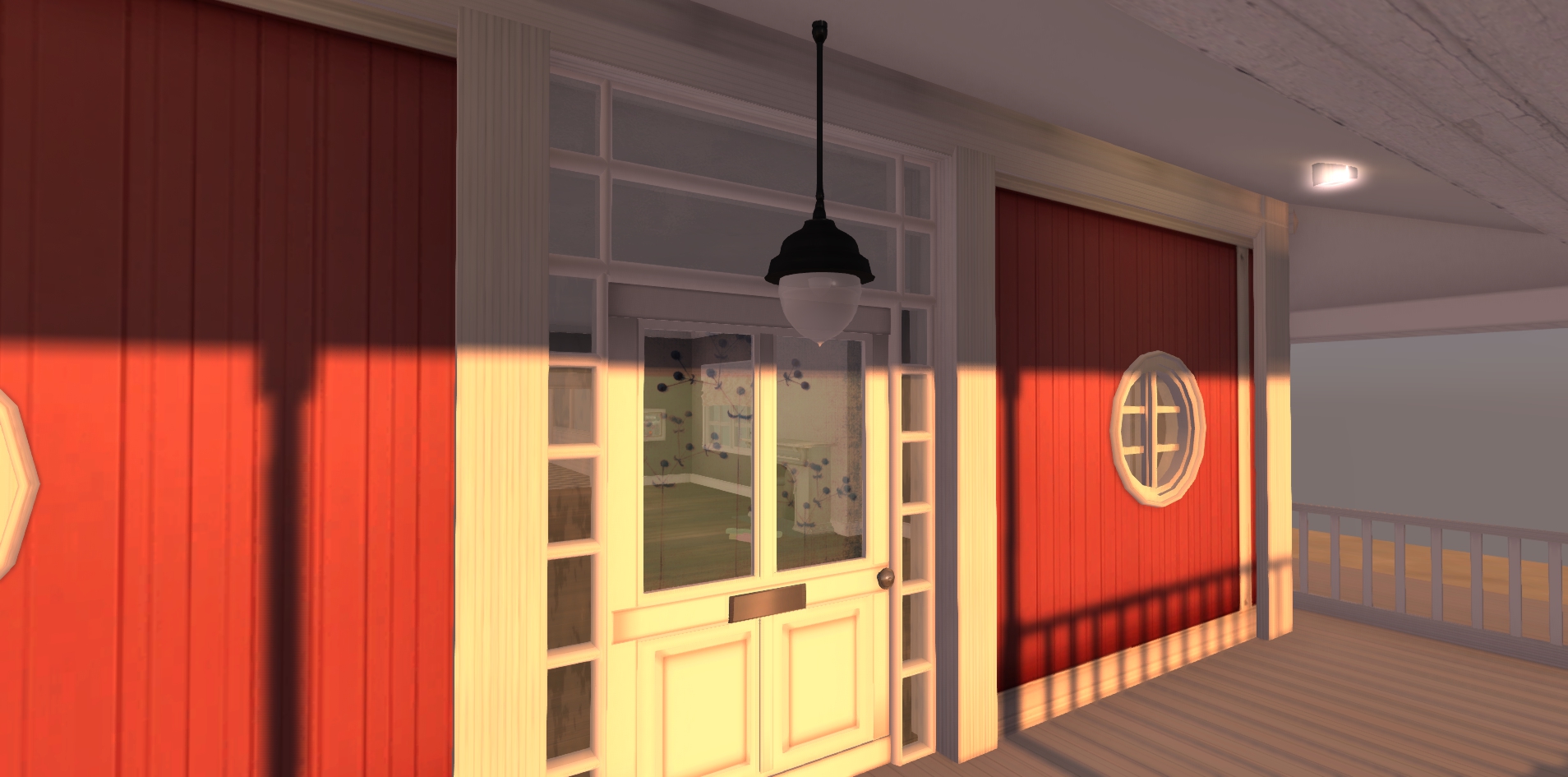


Fox Cottage
Thank you for your interest in/purchase of one of our HOMES. You will find them a great looking, sensuous and romantic addition to your ocean, beach, river or waterfall setting.
Setting up the house is straightforward. Fox Cottage comes as a single build and so can be easily placed and moved without the need for a rezzer. Always take a copy of your cottage. The ‘Accessories Pack’ comes with a rezzer so just follow the instructions in the description line.
This is a PART MESH build – so you will need a suitable viewer such as ‘Viewer 2’ or ‘Firestorm’ to be able to see the house properly.
See the ‘User Manual’ later on for full instructions on how to use.
Visit the website for more photos, policy, FAQs and information on making modifications to MESH builds https://mocoscribe.wordpress.com/.
HOUSE DETAILS
House (Prims) 162 Copy/Mod
Various Accessories (Prims) 101 Copy
Fires (scripted)
Lights (On/Off Switch)
Lanterns (On/Off Switch)
Outdoor Chairs (With multi-sits)
~ Note: copy/mod excludes modifying scripts
1) TEXTURE CHANGE CONTROL PANEL
You can change the textures of the blinds, windows, floors and walls in the house and conservatory. The texture change panel is the picture frame on the right hand back wall of the living room.
- **TOUCH THE FLASHING LIGHT TO BRING UP THE MENU**
TEXTURE CONTROL ACCESS LEVELS
You can select 3 access levels of user, who may interact with the texture change script:
Level 0 – Everyone : means anyone who touches the control panel will be able to set the texture control menu
Level 1 – Authorized users : list of users must be specified. The list is saved in a notecard “:mptUsers” (without the quotes) in the control panel. This notecard is located in the flashing light prim of the access panel. To access this prim – select build – choose edit linked – click on the light prim – go to contents. You will see the notecard there. To add specified names follow the details below. Add the name of each avatar who you’d like to allow access to the texture change menu. Each name MUST be written in a new line. Spell each name exactly as it is in SL including capitals – Beware of misspellings 😉 The owner of the object doesn’t need to be in the list if Access Level is set to 1 in order to have access to the menu.
You can access this notecard by selecting the contents of the control panel.
Level 2 – Owner only : only the owner of the object will have access to the menu.
2) OUTDOOR LIGHTS/LANTERNS
All lights come with 3 settings which are Hi/Lo/Off. They use the Paskis light system which works very well and creates a lovely natural light.
Lighting is very important in-world and it makes a big difference to how ‘real’ things appear.
If you don’t have the right settings on your viewer you won’t see the effect of lamps and candles. To make sure you have the right settings on Phoenix go to:
Preferences > Graphics > Select advance/custom > Select local lights ‘yes’
Check the settings for other viewers too!
- **IMPORTANT** Remember that you will have to adjust your lighting if/when you change your graphic settings. The more use you make of lighting and shadows will mean that you will have to adjust your indoor lighting accordingly.
3) SWING DOORS
The most effective security to protect your privacy and possessions is to set to the land to private and invest in a top end security or land protector!
These notes apply to the lockable doors only (front door and conservatory door)
Touch door and say ‘show help’ in the chat for a list of commands (omit the apostrophes)
- **Multi User Lockable Door Commands List**
Cottage: ‘show help’ – Displays this file
Cottage: ‘lock’ – Sets the door to Locked mode
Cottage: ‘unlock’ – Sets the door to Unlocked mode
Cottage: ‘add [name]’ – Replace [name] with the av you want to add to the list
Cottage: ‘remove [name]’ – Replace [name] with an av you want to delete
Cottage: ‘say list’ – Shows who is on the All Access list
Cottage: ‘change time [time]’ – Replace [time] with the number of seconds
Wishing you hours of fun!
Love from Moco XXX
mocoscribe.wordpress.com
see the online store at SL Marketplace
4) MODIFYING POLYGON MESH BUILDS
There are some important differences between Mesh & old style prim building. Linden Lab’s support team confirm that Mesh and Partial Mesh builds behave very differently to prims, so, if you enjoy modifying the houses you buy, it’s even more important to know what to do.
Only make modifications if you are confident in what you’re doing and always take a copy of the cottage. This house is a partial mesh build therefore, some components are mesh, some are prims, some are sculpts.
Here are some points to bear in mind when making modifications, but see the blog FAQ’s as well;
- The Land Impact (LI prim equivalent) for this cottage when bought is 140 in its original state. I will provide Customer Support/help for any issues connected with the original build. Please send an email, notecard or contact me via my blog as IMs often get capped
- Linked Mesh objects can show are much lower combined Land Impact than as separate individual items. This means that you will need to understand how to combine them efficiently and how to optimise the physics to get the lowest possible LI
- Setting the physics for each object you modify in the most optimum way will help to keep prim usage down. Physics here just means the way that objects interact with the Virtual World and Avatars, literally their physical properties in the Metaverse such as: collision, whether you can walk on/through it etc. You will find the physics tab in ‘Edit Object’ >>> Features Tab. See further technical information around this on the Second Life Blog
- In addition the physics properties of objects will change once de-linked. Setting the physics incorrectly or changing them from the physics set in the original build can have an impact on your use of the building i.e. changes made to object physics may cause you to fall through floors, unable to walk through arches, doorways etc, so be careful when making any changes!
- Linden Lab also confirm that Prim count/Land Impact can also increase when scripts are added to the build this is just the way that Mesh has been set up in Second Life
Lighting, Shadows & Reflections
Make sure you set you lighting etc to create the perfect ambience for your SL experience. Setting these can dramatically change not only the look of your home but your avatar too.
MOCO EMPORIUM
See the right hand side bar for your taxi to the inworld store and link to the marketplace shop.
On The Second Life Marketplace

 moco homes emporium